Morse Code Keyboard: Type With Dots and Dashes Online, on Android and on iPhone
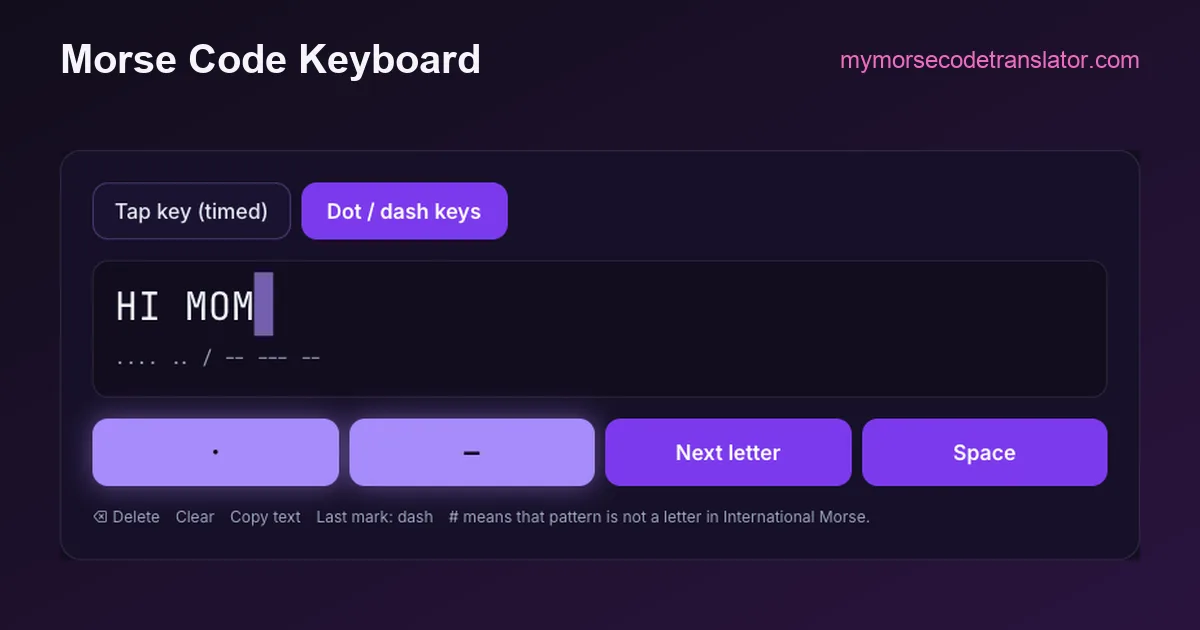
A morse code keyboard replaces the usual letter keys with two keys, dot and dash, plus a way to say "that letter is finished". The keyboard below works in your browser with nothing to install: press · and –, then Next letter, and the text builds up above. Copy it when you're done. To type Morse in every app on your phone, Google's Gboard has a Morse layout for Android and iPhone; the steps are further down. This page covers both, and where each one fits.
▌
Three kinds of Morse keyboard
"Morse code keyboard" means three different things, and it helps to know which one you're after:
- An on-screen keyboard on a web page, like the one above. Nothing to install, it works on any device, and it is ideal for writing a message once, practising, or showing someone how Morse input works.
- A system keyboard on your phone, like Gboard's Morse layout. It replaces your normal keyboard in every app, so you can text, search and write email in Morse. This is the one that matters for accessibility.
- A physical key or paddle wired up as a computer keyboard. A hobbyist build: a telegraph-style key or a radio paddle connected to a small microcontroller that turns your dots and dashes into keystrokes. Hobbyists have published several, from a five-switch Instructables project to an iambic paddle wired to a Teensy board for digital radio work.
The rest of this page goes through each one.
Using the on-screen keyboard above
The keyboard opens in Dot / dash keys mode, which is untimed: speed never matters.
- Press · for a dot and – for a dash. The pattern so far appears in the second line, and the letter it currently spells is previewed in amber.
- Press Next letter to lock the letter in. Press Space to end the word.
- ⌫ Delete removes the last mark (or the last letter, if you are between letters). Clear starts again, and Copy text copies what you've written.
- A # means the pattern isn't a character in International Morse. Delete a mark and try again.
Switch to Tap key (timed) if you want to send the way a radio operator does, with a single key where the length of each press decides dot or dash and pauses end letters and words. That mode, and how to get your timing clean, is covered on the tap Morse code page.
Everything happens in your browser. What you type isn't sent anywhere, which matters if you are using Morse to write something private.
Tips that make typing quicker:
- Say the rhythm as you press it (di-dah for A). Your thumbs follow your voice, and you'll make fewer slips than if you count.
- Watch the amber preview, not the keys. It shows what the current pattern spells, so you can see an N turn into a K as you add the last dash, and stop in time.
- If you overshoot, press ⌫ once to remove the last mark rather than clearing the letter.
Turning on Gboard's Morse keyboard on Android
Google's help page "Write in Morse code" gives these steps for Android:
1. Install Gboard from the Play Store if it isn't already your keyboard. 2. Open Settings → System → Languages & input → Virtual keyboard → Gboard. 3. Tap Languages, choose English (US), swipe through the layouts to Morse code, and tap Done. 4. In any text field, tap the globe key until the Morse layout appears.
The same page says the Morse layout is available for English (United States) on devices running Android 5.0 and higher. Menu names can differ slightly between phone makers, so if you can't find Languages & input, search Settings for "Gboard".
Gboard's Morse settings, and what they actually do
According to the same help page, the Morse layout has four settings worth knowing:
- Sound on keypress plays a tone as you type, which helps you hear your rhythm.
- Character timeout sets how long Gboard waits after your last mark before turning the sequence into a letter. Set it to Never and you close each letter yourself with the space bar, exactly like the untimed mode on this page.
- Word timeout is off by default. If you set it, a longer pause ends the word and adds a space, and autocorrect and suggestions still apply.
- Key repeat: holding dot or dash repeats it, with an adjustable start delay and repeat speed.
The suggestion strip shows the Morse pattern for suggested words, so you can learn as you type. If timing makes you anxious, start with character timeout set to Never. You can always shorten it later.
Gboard's Morse keyboard on iPhone and iPad
Google brought the Morse layout to Gboard for iOS in July 2018, a couple of months after announcing it at its I/O conference that May. Coverage at the time described it as English (US) only, arriving in Gboard version 1.29.0, with large dot and dash keys replacing the letters. To use it, install Gboard from the App Store, add it under Settings → General → Keyboard → Keyboards, then choose the Morse layout in Gboard's language settings.
Apple's own keyboards don't include a Morse layout. Two caveats from the 2018 coverage are worth knowing: the external-switch support described for Gboard applies to Android, and Google's help page today gives detailed steps for Android only. On an iPhone, if the layout doesn't appear in your version of Gboard, the on-screen keyboard on this page works in Safari as a fallback.
Why a Morse keyboard exists at all: accessibility
The Gboard Morse layout wasn't built as a novelty. Google developed it with Tania Finlayson, a Morse code assistive-technology developer who has cerebral palsy and whose input shaped the layout and its settings. A two-key layout means anyone who can reliably make two distinct movements can type. That might be a sip and a puff, two head switches, or a press of the left and right hand.
Google's help page describes the accessibility side for Android:
- Gboard recognises the keys an external switch device assigns to dot and dash.
- You can enter Morse with Android Switch Access and an external switch. Turn on Show virtual keyboard under Settings → System → Languages & input → Physical keyboard.
- With more than two switches, the extra switches can be assigned to other actions.
- The Morse layout works with TalkBack, Switch Access and Select to Speak.
Google also published the Morse Typing Trainer, made with Tania Finlayson, Use All Five and Google Creative Lab in May 2018, as a free web game for learning the codes. Its source code is on GitHub. If you are setting up Morse input for someone else, start with that game and the timeout set to Never.
Learning the codes fast enough to type
A keyboard is only as quick as your memory of the code. Two routes work:
- By ear first, if you also want to read Morse. The Morse code trainer adds one character at a time at real speed and moves you on at 90% accuracy.
- By shape, if you only want to type. Keep the Morse code chart or the printable chart beside you for the first few days and look up only the letters you miss. Gboard's suggestion strip also shows patterns as you go.
Start with the vowels and the most common consonants: E (·), T (–), A (·–), I (··), N (–·), O (–––), S (···). Between them they cover a large share of everyday English text, and they are among the shortest codes. Once those are automatic, a Morse keyboard is faster than it sounds. E, the most common letter in English, is a single tap.
A worked example. Typing HI MOM on the dot/dash keys takes 13 mark presses: H ···· (4), I ·· (2), M –– (2), O ––– (3) and M –– (2). Add a Next letter after each of the five letters and one Space between the words, and you have 19 presses where a normal keyboard needs six. So Morse is slower for most people. The point of a Morse keyboard isn't raw speed. It is that two keys are enough, which is what makes it valuable for switch users and fun for everyone else.
On-screen keyboard vs Gboard vs a physical key
Which keyboard fits which job:
| You want to… | Best fit | Why | |---|---|---| | Write one message, a tattoo or a puzzle | On-screen keyboard on this page | No install; copy the text into the Morse code translator to hear it or flash it | | Type Morse in every app on Android | Gboard Morse layout | System-wide; switch and TalkBack support | | Type Morse on an iPhone | Gboard for iOS, or this page in Safari | Apple's keyboards have no Morse layout | | Practise sending like a radio operator | Tap key mode on this page, then a real key | Trains timing, not just patterns | | Use a telegraph key with a computer | A DIY key-to-USB build | Hobby projects turn key presses into keystrokes |
Whichever you use, the code is the same International Morse defined in ITU-R M.1677, so a message you type on Gboard reads correctly in the Morse code decoder and in any other translator.
On 22 October 2026 I typed HI MOM on this page's dot/dash keys: 13 mark presses, a Next letter after each of the five letters and one Space, 19 presses in all. It decoded correctly first time. I also re-read Google's "Write in Morse code" help page that day for the Android steps and settings above. The menu path and the four settings are copied from it, not from memory.
Frequently Asked Questions
Q. Is there a Morse code keyboard for iPhone?
Yes. Gboard for iOS added a Morse layout in July 2018 (English US). Apple's own keyboards don't have one. The on-screen keyboard on this page also works in Safari with nothing to install.
Q. How do I get the Morse keyboard on Android?
Install Gboard, then go to Settings → System → Languages & input → Virtual keyboard → Gboard → Languages → English (US), swipe to Morse code and tap Done. Use the globe key to switch to it.
Q. Do I need to type at a certain speed?
No. Set Gboard's character timeout to Never, or use the Dot / dash keys mode on this page, and you decide when each letter ends.
Q. Can I use a real telegraph key as a keyboard?
Yes, with some building. Hobbyists connect a key or paddle to a small microcontroller that types the decoded letters into a computer, and several such builds have been published online.
Related guides
← Back to the My Morse Code Translator home page.

By Sukie
Sukie is the creator of My Morse Code Translator — a puzzle nerd and gadget tinkerer who fell down the Morse code rabbit hole and decided to build the most fun Morse translator on the web. When she's not adding new sound packs or reveal animations, she's decoding hidden messages in songs or designing Morse code bracelets for friends.
Last updated: 2026-11-02