Morse Code Image Translator
A morse code image translator answers a tempting question: can a picture of dots and dashes be decoded automatically? Now, yes. For a clear picture, this tool reads the dots and dashes right in your browser and returns the letters instantly — nothing is uploaded. For a trickier real-world photo, it can hand off to an AI vision reader. Here is the honest headline up front, because it matters: it works best on clear, high-contrast pictures where the dots and dashes are easy to make out, and it is a best-effort read on messy real-world photos where lighting, angle, curved surfaces, and clutter get in the way.
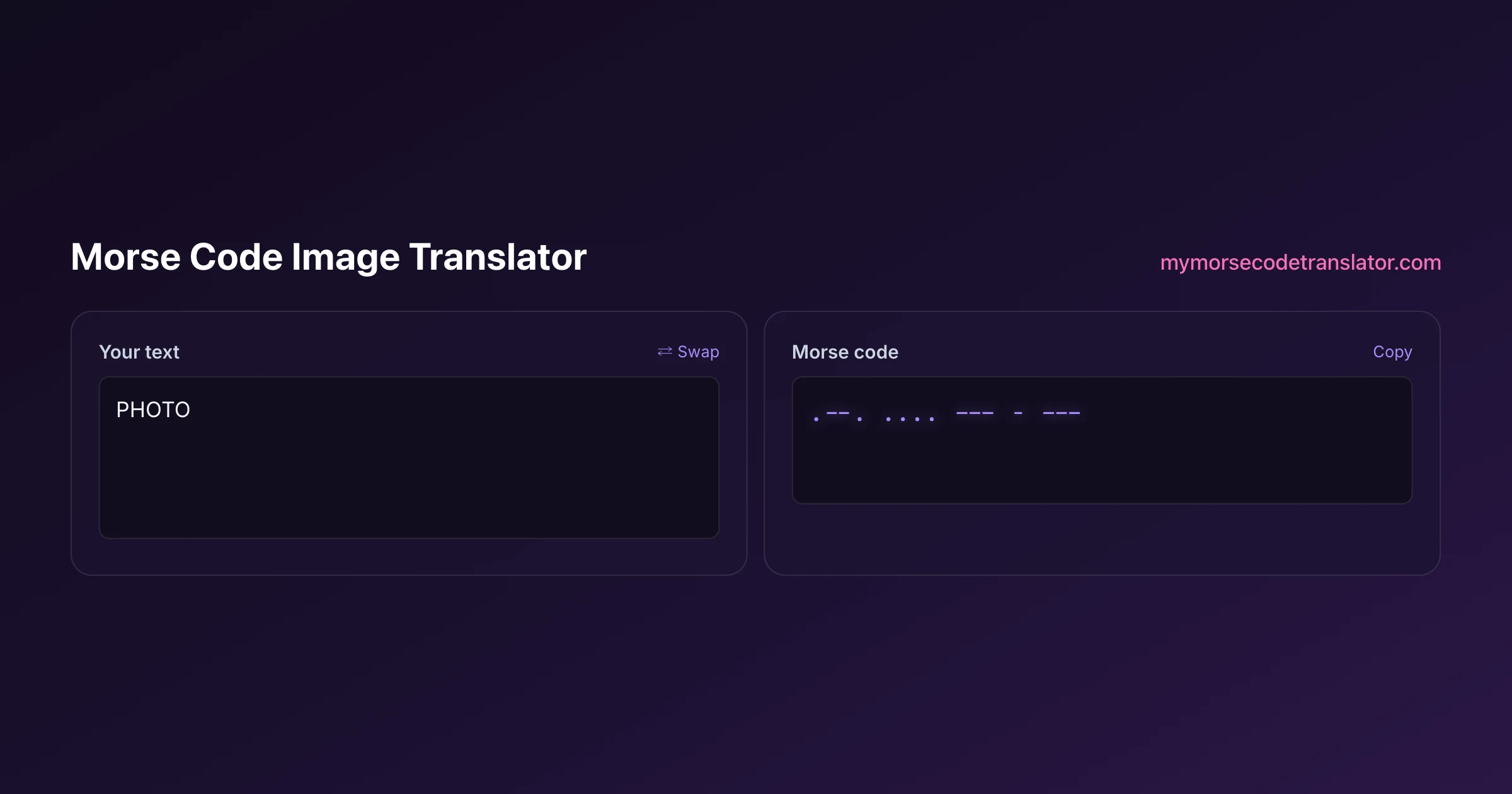
Translate Morse code from an image
Clean images (graphics, screenshots, clear printed Morse) are read right on your device — instant, free, and nothing leaves your browser. Only trickier photos (curved bracelets, tattoos, odd angles) fall back to an AI reader, which sends the image securely to our server, reads it once, and discards it. Either way, if you can read the dots and dashes yourself, the text translator is instant.
👀 Preview
Press ▶ Play — this shows what you'll see and hear.
Customize your message
Your picture appears in Play and downloaded videos. Note: it can't be included in a shared link — links carry the message only.
Share as a secret message
The message is hidden inside the link and decodes with sound & light when your friend opens it.
How the image translator reads Morse
For a clean image — a generated Morse graphic, a screenshot, or clear printed dots and dashes, even when it wraps onto more than one line — this translator measures the picture directly in your browser. It finds each mark, measures how wide and how tall it is to tell a dot from a dash (and a slash word-break from either), and reads the spacing to group the marks into letters and words. That path is exact, instant, free, and completely private, because the image never leaves your device.
When a picture is too messy for that clean measurement — a curved bracelet, an engraving, a tattoo, or a photo at an angle — it falls back to an AI vision model that reasons through the dots and dashes more like a person would. Either way, the dots and dashes are decoded against the same International Morse standard the rest of this site uses. The harder a picture is for a person to read, the harder it is for either method — which is exactly what you would expect, and why clean, high-contrast images decode so much better than messy ones.
What decodes reliably and what does not
Being straight with you saves frustration, so here is the split.
Reliable, in my testing:
- Computer-generated Morse strips with consistent dot and dash sizes
- Black-on-white or white-on-black graphics with clean edges
- Screenshots of Morse from another tool or a slide
- Simple horizontal signals with even spacing
Best-effort beta, expect to help it along:
- Photos of Morse on paper, where shadows and paper texture add noise
- Bracelets, engravings, and tattoos, where the dots and dashes curve or wrap
- Anything at an angle, warped by perspective, or with a busy background
- Faint pencil, low contrast, or blurry captures
On the beta cases, the decode might be partly right, might flag unknown groups, or might need you to crop tighter and try again. That is not a bug; it is the honest reality of turning a messy photograph into precise timing.
How to give it the best possible image
You can dramatically improve results with a few seconds of prep. The translator is reading contrast and spacing, so anything that sharpens those helps:
- Crop to just the signal, removing background, hands, and edges
- Increase contrast so dots and dashes are solid dark against a bright ground
- Straighten the image so the signal runs level, not diagonally
- Make sure the gaps between letters are visibly wider than the gaps inside a letter
- For a bracelet or curved object, photograph it as flat and straight-on as you can
Think of it like photographing a barcode. A crisp, square-on, high-contrast shot scans instantly; a blurry angled one makes the scanner work for it or fail outright.
When to skip the image and just type
Sometimes the fastest path is not the image at all. If you can already see the dots and dashes with your own eyes, typing them into the text decoder takes ten seconds and sidesteps every photo problem. Image decoding earns its keep when the pattern is long, dense, or awkward to read manually, or when you genuinely cannot tell a dot from a dash by eye and want the pixel measurements to settle it.
So my rule of thumb: for a short, clear signal, read it yourself and paste it. For a long or ambiguous one, or when you are curious whether that necklace really spells what the seller claims, let the image translator do the counting. Both roads end at the same decoder logic; you are just choosing how the dots and dashes get there.
Why photos are so much harder than graphics
It is worth understanding why a crisp generated strip decodes perfectly while a photo of the very same message fights you, because the reason tells you exactly what to fix. A generated image is clean: every dot is the same solid mark, every gap the same clear space, and the edges are razor sharp. That kind of even, unambiguous pattern is easy for the reader to follow, and the result is usually exact.
A photograph introduces a dozen enemies at once. Lighting is uneven, so one end of the signal is brighter than the other and marks that were easy to pick out on the left get murky on the right. Camera focus softens the edges, so a dot bleeds into its neighbouring gap and the boundary becomes fuzzy. JPEG compression sprinkles faint artefacts around every edge. Perspective, holding the camera at even a slight angle, stretches the spacing unevenly across the frame, so a gap that is 'letter-sized' on one side is 'word-sized' on the other. Add paper texture, a shadow from your own hand, or a patterned surface behind the signal, and the clean pattern the reader depends on starts to break down.
None of this is a flaw in Morse or in the tool; it is the gap between a clean signal and a messy capture of one. Every prep tip on this page, crop, contrast, straighten, is really about undoing one of those enemies. The closer you push a photo back toward the clean, even, high-contrast look of a generated strip, the closer your decode gets to perfect.
A realistic workflow for tricky images
When an image will not decode on the first try, resist the urge to keep hammering the same photo. A short, deliberate loop works far better:
- Crop hard to just the dots and dashes, cutting every distraction at the edges
- Boost contrast and, if your photo editor allows, drop it to pure black and white so there is no grey to misjudge
- Rotate until the signal runs dead level across the frame
- Run the decode and read which groups it flagged as unknown
- For the flagged groups only, zoom in and read those dots and dashes by eye, then correct them in the text decoder
That last step is the quiet secret: you rarely need the image tool to be perfect, you need it to get you eighty percent of the way and flag the rest. I treat a hard image as a collaboration, let the AI reader handle the long clean stretches, and lend my own eyes to the two or three spots where a shadow or a curve defeated it. Between the two, a signal that seemed undecodable usually gives up its message in a couple of minutes, and far faster than squinting at the whole thing character by character from the start.
It also helps to set your expectations by the source before you even upload. If someone generated the image in a Morse tool and sent it to you, expect a clean, near-perfect decode and be mildly surprised if it struggles. If you photographed a physical object, jewellery, an engraving, a page, expect to do some of the prep work above and to hand-correct a flagged group or two. Going in with the right expectation turns what could feel like a broken tool into a predictable, cooperative one. The image translator is genuinely useful; it just rewards knowing which of those two worlds your particular picture came from.
Privacy: what happens to your image
How private your image is depends on which reader it needs. A clean image is measured entirely in your browser — it is never uploaded, never stored, and gone the moment you leave the page. That is the common case, and it is completely local. Only when a photo is too messy for that on-device read does it fall back to the AI reader, which sends the image securely to our server, reads it once, and discards it — we do not store it, log it, or use it to train anything. That is a fair thing to know when the picture might be of a personal piece of jewellery, a private note, or a gift you are checking before you hand it over. If you would rather nothing ever left your device, and you can read the dots and dashes yourself, typing them straight into the text decoder keeps everything local.
For the underlying letter tables, the translator decodes against International Morse Code as standardised by the ITU and catalogued on Wikipedia's Morse code article, so a correctly-read image produces the same letters any operator would expect. The reading step only pulls the dots and dashes out of the picture; the meaning behind them is the same worldwide standard everything else on this site uses.
I tested this on a friend's Morse bracelet that supposedly spelled her daughter's name. Photographed straight-on and cropped tight, it read the name perfectly; photographed at a slight angle on my kitchen counter, it dropped two letters and flagged a third. Same bracelet, thirty seconds apart — the only variable was how flat I held the camera.
Frequently Asked Questions
Q. Why does a screenshot of morse code sometimes read better than a photo?
Because a screenshot has perfect contrast, no lens blur, no shadows and no perspective distortion — the marks are exactly the pixels they were drawn as. A photograph adds every one of those problems at once, which is why cropping tight, flattening the angle and boosting contrast helps so much.
Q. Why does the image morse code translator work on some pictures but not others?
It reads the pattern of dark and light along the signal, so it needs clear contrast and clean spacing. Sharp, high-contrast graphics decode reliably. Photos with shadows, angles, texture, or clutter blur those runs, which is why real-world snapshots are best-effort rather than guaranteed.
Q. Can it read Morse off a bracelet or tattoo?
Sometimes, and it is squarely in the beta category. Curved surfaces, wrapping, and skin or bead texture distort the dots and dashes. Photograph the piece as flat and straight-on as possible, crop tight, and boost contrast. Even then, be ready to verify the result by eye.
Q. What image formats can I upload?
Common web formats like PNG and JPG work. PNG is best for clean, generated graphics because it keeps edges crisp, while JPG photos can introduce compression fuzz around the dots and dashes that makes the run lengths harder to measure.
Q. The decode came out wrong. What can I do?
Crop tighter to just the signal, increase the contrast, straighten any tilt, and try again. If it still struggles and you can read the dots and dashes yourself, typing them straight into the text decoder is the reliable fallback.
Q. How does it tell a dot from a dash in a picture?
By length. For a clean image it measures each mark in your browser — a short mark is a dot, a mark about three times longer is a dash — and reads the spacing to find where letters and words break. For a messy photo, the AI reader makes the same judgement by reasoning through the marks. Consistent, clearly-sized marks are what make it reliable either way.
Q. Is my uploaded image sent to a server?
Only sometimes. Clean images are read entirely in your browser and never uploaded. A photo that is too messy for that on-device read falls back to an AI reader, which sends the image securely to our server, reads it once, and then discards it — we do not store it. If you would rather keep everything on your device, type the dots and dashes into the text decoder instead.
Q. Can it handle vertical or diagonal signals?
It works best on a horizontal signal that runs left to right. A diagonal or vertical pattern should be rotated to horizontal first. Straightening the image so the dots and dashes line up level gives the cleanest read.
Q. Does a busy background matter?
Yes, a lot. Anything dark in the background can be mistaken for part of the signal. Cropping the image down to only the dots and dashes, or increasing contrast so the background washes out, removes that confusion.
Q. Can I decode audio or plain text instead?
Yes. For sound, use the morse code audio translator, and for dots and dashes you can already read, the morse code decoder or text translator is faster. The image tool is specifically for when your Morse only exists as a picture.
Related guides
← Back to the My Morse Code Translator home page.

By Sukie
Sukie is the creator of My Morse Code Translator — a puzzle nerd and gadget tinkerer who fell down the Morse code rabbit hole and decided to build the most fun Morse translator on the web. When she's not adding new sound packs or reveal animations, she's decoding hidden messages in songs or designing Morse code bracelets for friends.
Last updated: 2026-07-08