Text to Morse Code: Encode Anything You Type
Text to morse code conversion is really just a fast lookup: every letter and number you type has one fixed pattern of dots and dashes, and this tool swaps them in the instant your finger leaves the key. Paste a sentence into the box above and the encoded signal builds live, character by character. From there you can copy it, hear it played back, flash it across your whole screen, or fold it into a shareable link. Encoding is only where the fun starts.
👀 Preview
Press ▶ Play — this shows what you'll see and hear.
Customize your message
Your picture appears in Play and downloaded videos. Note: it can't be included in a shared link — links carry the message only.
Share as a secret message
The message is hidden inside the link and decodes with sound & light when your friend opens it.
What "encoding" actually means here
Going from text to Morse is called encoding, and it runs in one direction: readable words in, dots and dashes out. The reverse trip — dots and dashes back to words — is decoding, and it lives on a separate page if that is what you need.
Encoding is the easy direction, and here is why. Each character maps to exactly one signal. There is no guessing, no context, no grammar to parse. The letter R is always dot-dash-dot, whether it sits in "RADIO" or "CAR". So the moment you type a character, the tool looks it up in a fixed table and prints the matching pattern. That is the entire mechanism, and it is why the output can keep up with you as fast as you can type.
Decoding is harder because Morse has no capital letters, no built-in punctuation between symbols, and relies entirely on the length of gaps to tell letters and words apart. Encoding sidesteps all of that: your keyboard already tells the tool exactly where one letter ends and the next begins. When you appreciate that asymmetry, you understand why turning text into Morse feels instant while reading Morse by ear takes months of practice.
A worked example, letter by letter
Let us encode the word HELLO by hand so you can see the tool has nothing up its sleeve.
- H is four dots: ....
- E is a single dot: .
- L is dot-dash-dot-dot: .-..
- L again: .-..
- O is three dashes: ---
Strung together with a single gap between each letter, HELLO becomes: .... . .-.. .-.. ---
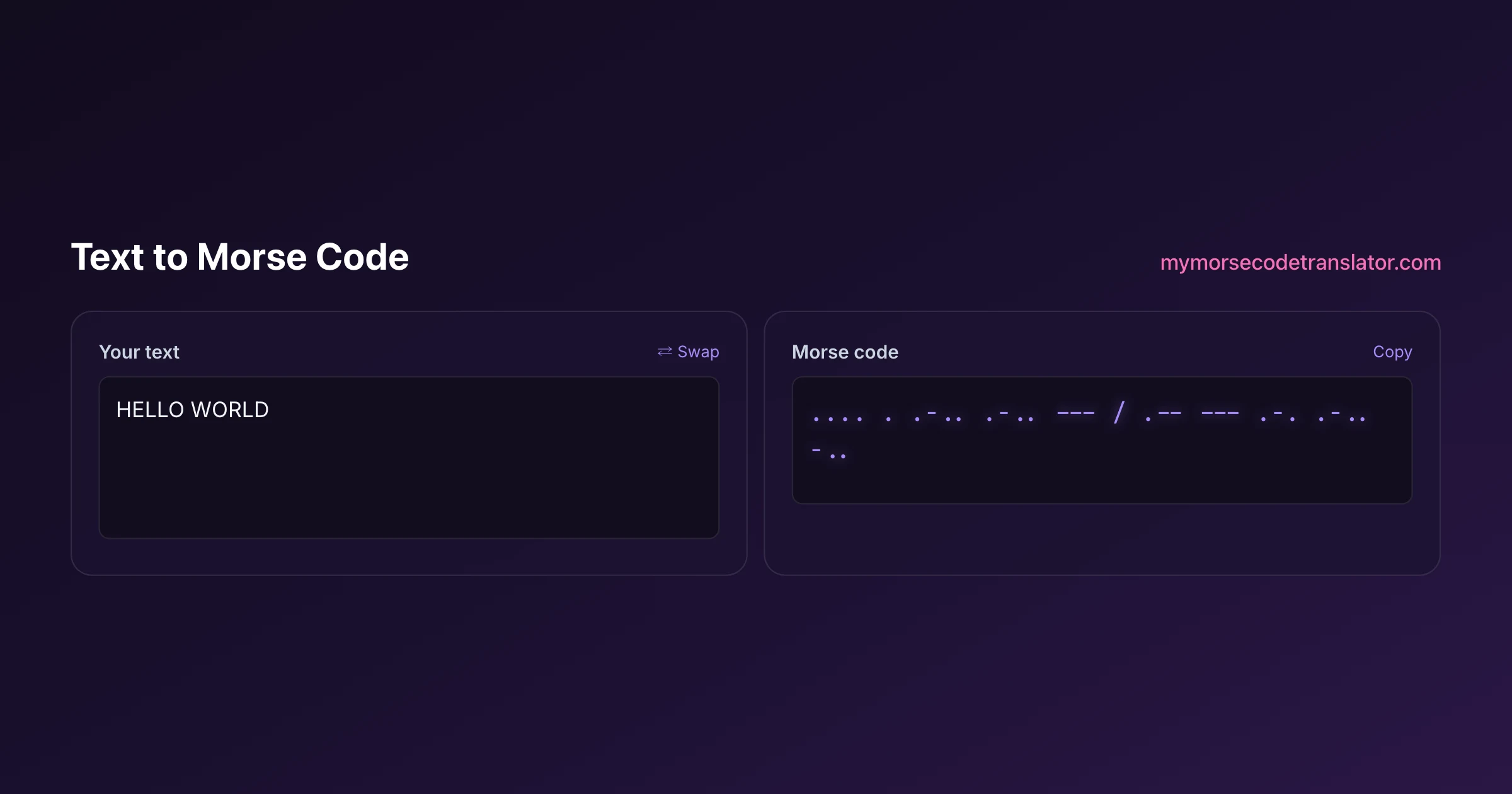
Now add a second word. To write HELLO WORLD, you separate the two words with a bigger gap, usually written as a slash: .... . .-.. .-.. --- / .-- --- .-. .-.. -..
Notice that the only difference between one long word and two words is the size of the gaps. The dots and dashes for the letters never change. This is the single most important thing to understand about encoding text: the symbols carry the letters, and the spaces carry the word breaks. Get either one wrong and the message reads differently on the far end. The tool handles both automatically, inserting a normal gap between letters and a slash between words, so you can trust that HELLO WORLD will not accidentally collapse into HELLOWORLD.
The spacing trap that catches everyone
If a beginner is going to make one mistake, it is spacing, so it is worth dwelling on. Standard Morse timing is built on a single unit of time. A dot lasts one unit. A dash lasts three. The gap between symbols inside a letter is one unit, the gap between letters is three units, and the gap between whole words is seven units.
Those ratios are invisible when you read Morse on paper — a dot and a dash just look like two marks — but they are the whole language when you send it. Two messages with identical dots and dashes but different word gaps mean completely different things. That is exactly why this tool preserves your spacebar presses as real word gaps rather than quietly dropping them.
When you play your encoded text as sound, the tool stretches every gap to the correct ratio, so a word break becomes a hearable seven-unit pause. Slow the speed down and every gap grows proportionally, which is the idea behind Farnsworth timing: keep each letter crisp and quick, but pad the silence between them so a learner's brain has room to decode. If your message ever sounds like an unbroken machine-gun rattle, the fix is almost always more space, not fewer dots.
Play it, flash it, or record your own beep
Once your text is encoded, the output is not a dead string of symbols — it is something you can perform. This is where the tool goes well past a plain converter.
Press play and it generates the tones with technically correct dot, dash, and gap timing. But you are not stuck with one flat beep. You can choose from six sound packs, nudge the pitch up or down, change the playback speed, and set the volume, so the same message can sound like a vintage telegraph key, a soft sonar ping, or a sharp radio tone.
My favourite trick, and one I have not seen anywhere else, is that you can record your own sound and use it as the Morse beep. Record a dog bark, a piano note, your own voice saying "beep", and every dot and dash plays back in that sound. It turns a serious code into a genuinely silly toy in about ten seconds.
And if you would rather send the message by light, there is a whole-screen flash mode. The screen blinks the code in real Morse timing, bright for the flashes so it carries across a room. The flash is strictly opt-in because bright flashing light can affect people with photosensitive epilepsy, and you can also upload your own photo to flash instead of a plain white screen if you want the reveal to feel personal.
Turn your encoded text into a video
Reading dots on a screen is fine, but sometimes you want to send the encoded message as something you can post. So the tool can export your text as a vertical MP4 sized for TikTok, Reels, and Shorts, with your customisation baked in — the sound pack you chose, the speed, the flash, and the word-reveal all render into the file.
That means the video is not a generic clip; it plays your message exactly the way you set it up. If you slowed it to a dreamy 8 words per minute with a soft sound pack and a photo flashing behind it, that is what exports. The clip carries a small watermark, and it downloads straight to your device.
There is also a karaoke-style reveal for anyone who wants to follow along. As the audio plays, the current word lights up and a spotlight moves through the message, so viewers can watch which part of the text is being sent at any moment. It is the difference between hearing a mystery rattle and actually learning where each letter falls, and it is what makes the exported videos genuinely fun to watch rather than just correct.
Numbers, punctuation, and beyond the Latin alphabet
Plain letters are the easy part. The tool also encodes the things people forget they will need.
Digits are all five symbols long and follow a tidy pattern: 1 is dot then four dashes (.----), and each higher number swaps one more dot in until 5 is five dots (.....), then it reverses back so 0 is five dashes (-----). Once that clicks, you rarely look a number up again.
Punctuation is longer and less intuitive, which is exactly why having it done for you is a relief. A full stop is .-.-.-, a comma is --..--, a question mark is ..--.., and the @ sign — the newest official addition, added by the ITU in 2004 so people could send email addresses — is .--.-., which is really the letters A and C run together into a shape like the a-in-a-circle.
Because Morse was standardised well beyond English, this tool also handles other alphabets, so accented and non-Latin characters do not just vanish. If you do type something with no defined Morse equivalent, the tool skips it cleanly rather than inventing a symbol, which keeps your output honest and readable.
Where the code comes from, and where your text goes
The letter, number, and punctuation tables this tool uses are the International Morse Code defined in ITU-R Recommendation M.1677 — the same standard amateur radio operators use worldwide and the one documented in careful detail on Wikipedia's Morse code article. That is what lets a message you encode here be read correctly by a ham operator in Nairobi or a scout leader in Ohio: everyone is working from the same book.
As for your text: the entire conversion happens inside your browser. Nothing you type is uploaded, logged, or sent to a server. Encoding text into Morse is a lightweight character-by-character lookup that your phone or laptop finishes in a fraction of a millisecond, so there is simply no reason to involve the cloud. Close the tab and the message is gone. That matters when the thing you are encoding is a private note, a surprise, or a password hint you would rather no server ever saw. Good privacy and good speed usually pull in the same direction, and turning text into Morse is a neat little example of both at once.
I encoded a whole grocery list into Morse one evening, recorded my cat's meow as the beep, and played it back at 5 words per minute — it took ninety seconds to "read" three items and I laughed the entire time. That silly test is genuinely how I found a timing bug in the word-gap spacing, because the long pauses made a missing slash obvious to my ear.
Frequently Asked Questions
Q. How fast does text turn into Morse code?
Instantly. The conversion runs as you type, character by character, because each letter maps to exactly one fixed pattern. There is no button to wait on and no server round-trip — the dots and dashes appear live in the output as your finger leaves each key.
Q. Does capitalisation change the Morse output?
No. Morse code has no upper or lower case, so "HELLO", "Hello", and "hello" all produce the identical signal. If you truly needed to mark a capital, you would have to spell that out in words, which essentially nobody does.
Q. How are spaces between words shown?
As a forward slash (/) or a wider gap in the written output, matching normal Morse convention. When you play the audio, that separator becomes a seven-unit pause — the officially correct gap between words — so "HELLO WORLD" never collapses into one run-on word.
Q. Can I really use my own recorded sound as the beep?
Yes, and it is one of my favourite features. Record any short sound — your voice, an instrument, a pet — and the tool uses it in place of the standard tone for every dot and dash. It is the quickest way to turn a proper code into a personal joke.
Q. Can I export the encoded text as a video?
Yes. The tool renders a vertical MP4 sized for TikTok, Reels, and Shorts, with your chosen sound pack, speed, flash, and word-reveal baked in. It carries a small watermark and downloads to your device, ready to post.
Q. What happens to emojis or symbols with no Morse code?
The tool skips them quietly rather than inventing a placeholder. Most emojis, the pound sign, and a few rare symbols have no standard Morse equivalent, so leaving them out keeps your output clean instead of littering it with junk.
Q. Is the screen-flash safe for everyone?
The whole-screen flash is strictly opt-in for exactly that reason. Bright flashing light can affect people with photosensitive epilepsy, so it never turns on by itself — you choose to enable it, and you can flash a photo instead of a plain bright screen if you prefer a gentler reveal.
Q. Does my text get sent to a server?
No. The whole conversion happens locally in your browser, so your text and its Morse translation never touch a server. Close the tab and it is gone, which is why it is safe for private notes and surprises.
Q. How do I turn the Morse back into text?
Use the companion decoder or the Morse-to-English translator. Paste your dots and dashes there and it returns readable words, which is a handy way to double-check that what you encoded decodes back to exactly what you meant.
Related guides
← Back to the My Morse Code Translator home page.

By Sukie
Sukie is the creator of My Morse Code Translator — a puzzle nerd and gadget tinkerer who fell down the Morse code rabbit hole and decided to build the most fun Morse translator on the web. When she's not adding new sound packs or reveal animations, she's decoding hidden messages in songs or designing Morse code bracelets for friends.
Last updated: 2026-07-27